Skip to content
v2.25 macOS beta and Hide from screen share

The meeting copilot that stays on your side of the screen.

NexQ transcribes both sides of the call in real time and helps you answer in seconds, from a private overlay you can hide from screen share. No bot joins. Bring local models, any API, or your Claude subscription. Free and open source.

Windows 10/11 macOS on Apple Silicon (beta) other options

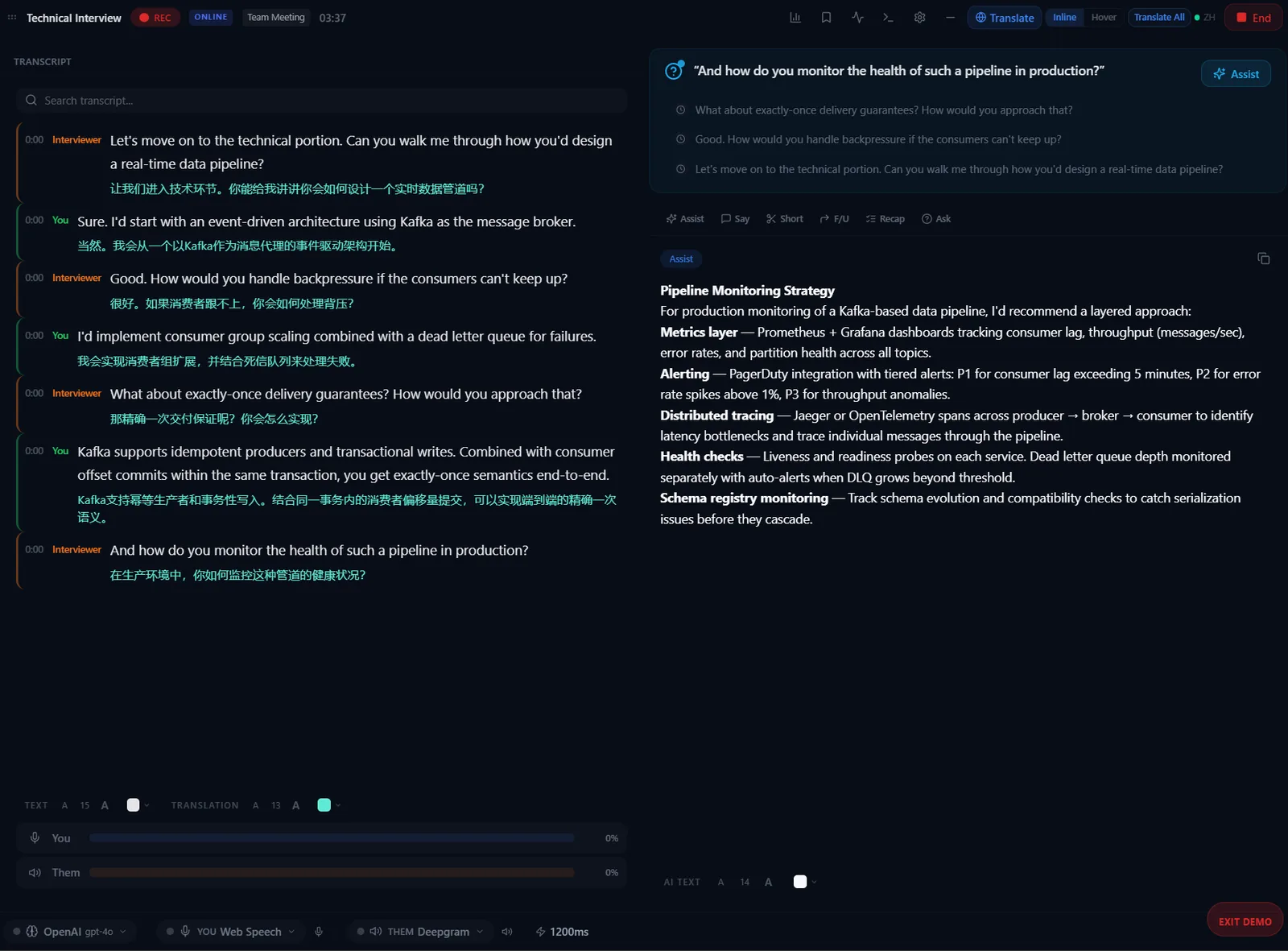
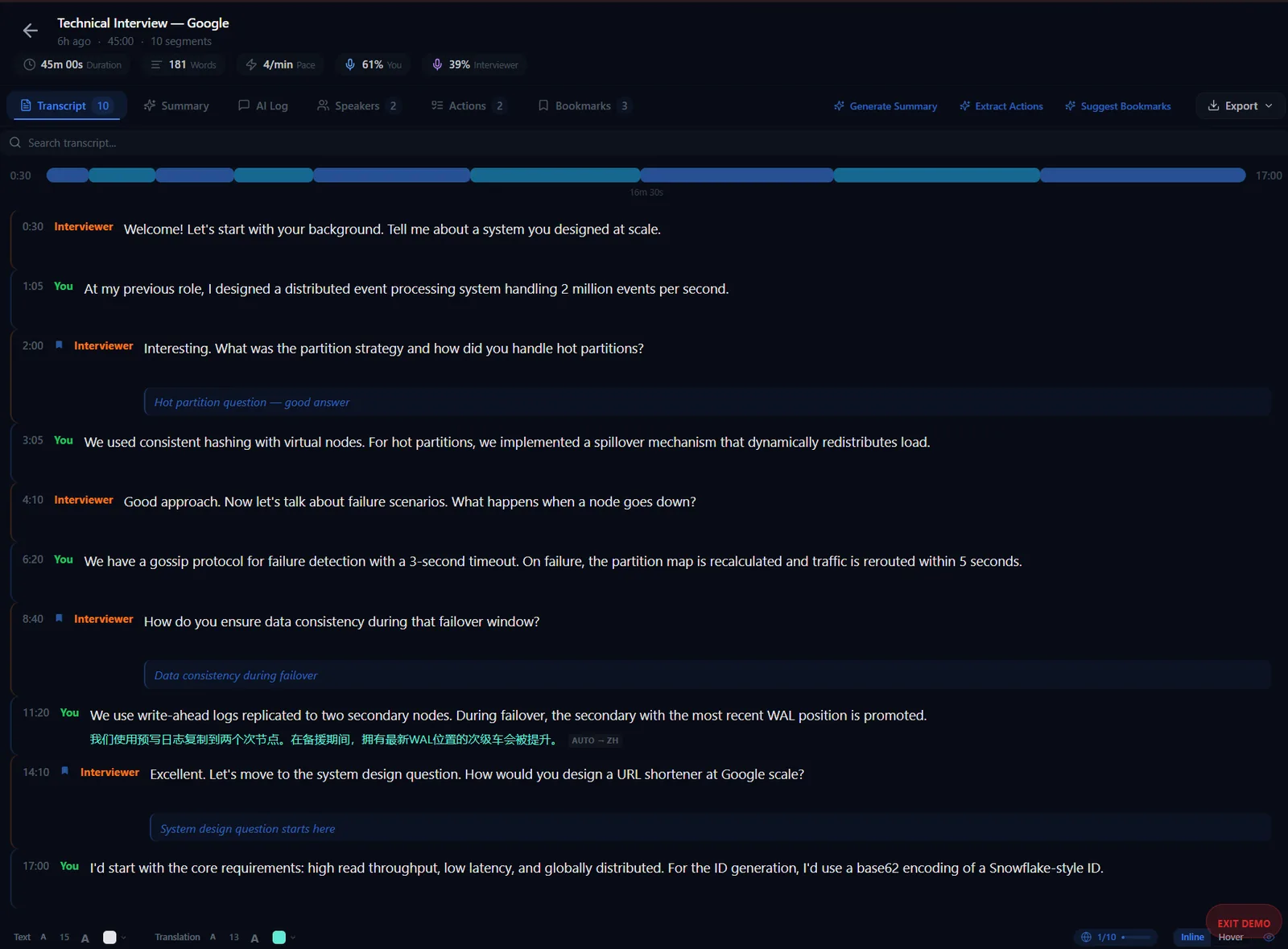
A live technical interview in NexQ's demo mode: both sides transcribed and translated, the question detected, an answer one keypress away.
speech-to-text engines
11
speech-to-text engines
AI providers, local or cloud
9
AI providers, local or cloud
bots in your meeting
0
bots in your meeting
open source, free forever
MIT
open source, free forever

Features

Everything you need in the moment. Nothing that gets in the way.

NexQ sits beside your meeting app as a compact, always-on-top overlay. It listens, keeps the transcript, and has an answer ready when you need one.

Real-time transcription

Hears both sides, and knows who is speaking.

Your microphone and your computer's audio are captured as two separate streams, You and Them, each with its own speech engine, mute and level. Continuous speech is merged into readable paragraphs.

On Deepgram, remote voices are told apart as Speaker 1, Speaker 2 and so on, and you can rename them. Live translation is built in, through five translation providers.

11 speech engines. Six need no API key, five run entirely offline.

  • Whisper.cpp (no API key)
  • Parakeet TDT (no API key)
  • Sherpa-ONNX (no API key)
  • ORT Streaming (no API key)
  • Windows Speech (no API key)
  • Web Speech (no API key)
  • Deepgram
  • Groq Whisper
  • Whisper API
  • Azure Speech
  • Cartesia
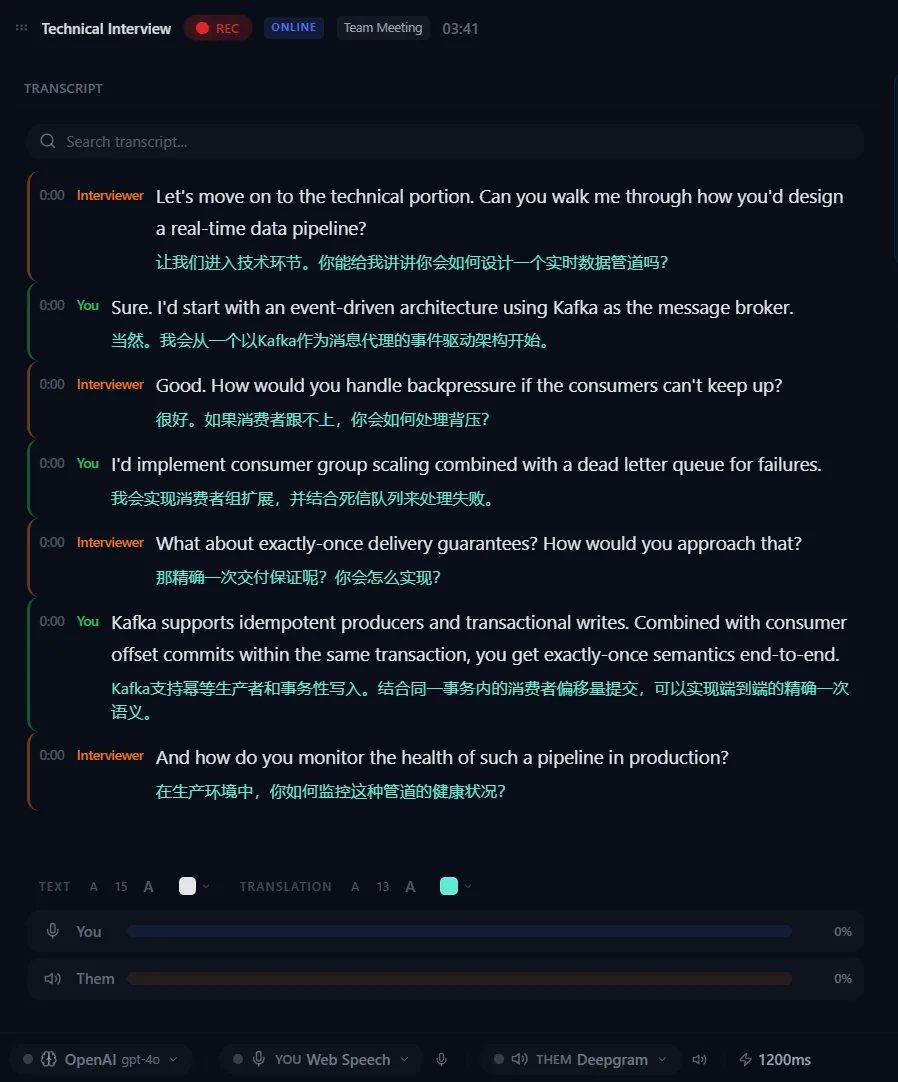
NexQ transcript with Interviewer lines in amber and You lines in green, each followed by a live Chinese translation.

AI copilot

One key, and the answer starts streaming.

NexQ detects questions as they are asked. Press a key for help that fits the moment: an answer, a shorter version, a follow-up, a recap, or your own question.

  • Space Assist
  • 1 What to say
  • 2 Shorten
  • 3 Follow-up
  • 4 Recap
  • 5 Ask

Choose exactly what the AI reads with the context picker: since your last answer, the last few minutes, or the whole meeting. A live progress panel shows each phase, and every answer of the meeting stays in the history.

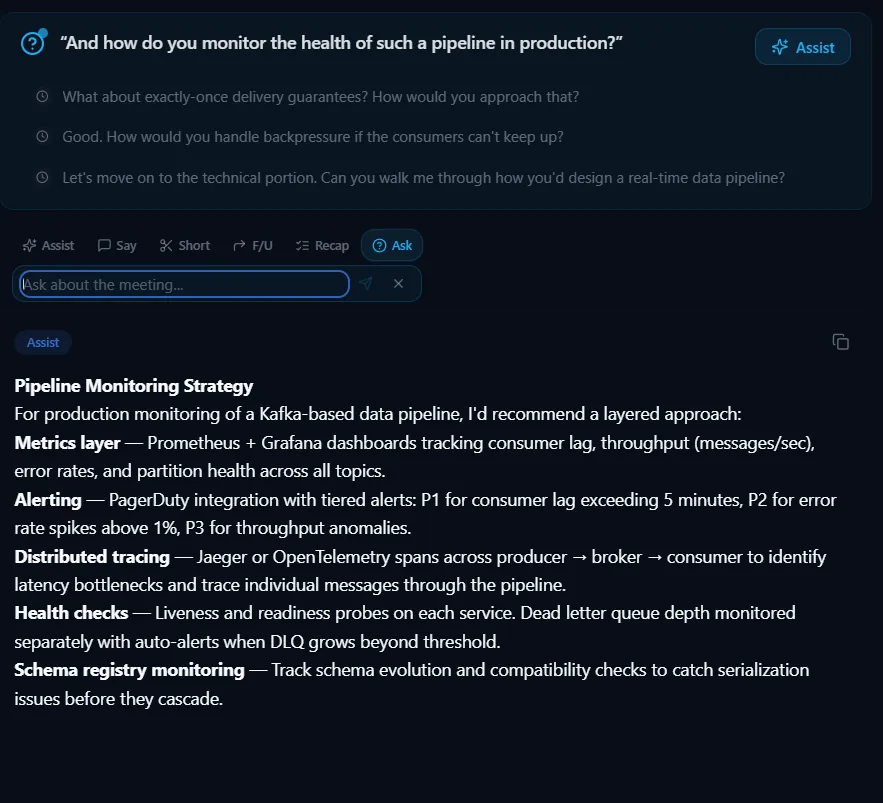
The NexQ answer panel: a detected interview question at the top, action buttons for Assist, Say, Short, Follow-up, Recap and Ask, and a structured streamed answer below.

Your documents

Answers grounded in your résumé, notes and specs.

Drop in PDF, Word, Markdown or text files. NexQ indexes them on your machine with a hybrid of vector and full-text search, so answers draw on what you actually wrote, not on guesses.

Running on a laptop without a GPU? Gemini Context Cache uploads your documents once per session and skips local embedding entirely.

How document context works

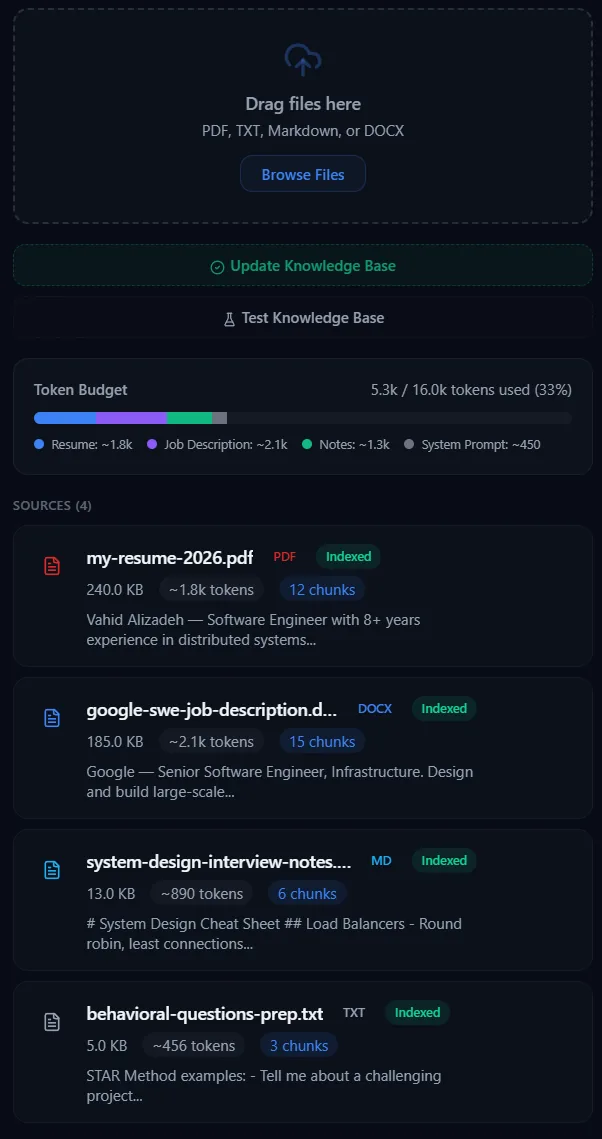
NexQ knowledge base panel listing indexed documents (a résumé PDF, a job description, interview notes) with chunk counts and a token budget bar.

Bring your own AI

Any model you trust. Including the plan you already pay for.

Run fully offline with Ollama or LM Studio, connect any of the major APIs, or point NexQ at a custom endpoint. Switch at any time; your meetings stay yours.

9 AI providers

  • Ollama local
  • LM Studio local
  • OpenAI
  • Anthropic
  • Google Gemini
  • Groq
  • OpenRouter
  • Custom endpoint
  • Claude subscription beta

New · Beta since v2.22

Use your Claude Pro or Max plan. No API key.

NexQ talks to the official Claude Code CLI on your computer. You sign in once in Claude's own terminal, and NexQ never sees your credentials.

Warm sessions
A session opens when the meeting starts, preloaded with your scenario and documents. Each request sends only the transcript that is new.
About a second to first words
With extended thinking off, Haiku starts answering almost immediately. Turn thinking on per tier when a question deserves it.
Real numbers
Tokens, cost and response time for every request, as Claude reports them, in the footer and the AI Log.
Sandboxed and fail-safe
The official CLI runs with all tools disabled in an empty folder. If Claude is unavailable, NexQ switches to your fallback provider.
Set up Claude in NexQ

Default tiers

Fast

Haiku effortLow

Live answers: Assist, What to say, Shorten, Follow-up, Ask

Extended thinking Off

Deep

Sonnet effortMedium

Recaps, summaries, action items, asking a past meeting

Extended thinking On
Claude Session ready

Pick any available model and effort for either tier. Usage counts toward your plan; NexQ shows Claude's reported numbers as an estimate.

Stealth mode New in v2.25

Visible to you. Invisible to the screen share.

Turn on Hide from screen share and the overlay stays right where you put it on your screen, but is left out of screen sharing, recordings and screenshots.

On your screen: meeting plus the NexQ overlay
In the share, recording or screenshot: no overlay

Switch it however suits you

  • Global shortcut, from any app (rebindable) CtrlShiftH on Windows ⌘ShiftH on macOS
  • Settings → General Hide from screen share
  • Overlay header One button, mid-meeting
  • Tray menu Hide from Screen Share

Privacy

Local-first, by design.

A meeting assistant hears everything. That is exactly why NexQ runs on your computer and is open source.

Read the source
  • No bot in the call

    Audio is captured on your own device. Nobody gets a join request, and it works with any meeting app.

  • You decide where data goes

    Pair a local speech engine with Ollama or LM Studio and nothing leaves your computer. Cloud providers only see what you send them.

  • Stored on your machine

    Meetings, transcripts and recordings live in a local database and folder. There is no NexQ cloud and no account.

  • Keys in the OS vault

    On Windows, API keys are kept in the Windows Credential Manager, not in plain-text files.

  • Signed updates

    Updates are signed and verified before install, and never run during a meeting.

  • Open to inspection

    Every line is on GitHub under the MIT license. Read it, audit it, or build it yourself.

Made for

The conversations where you can't afford to miss a thing.

Ready-made scenarios tune prompts and behavior for each situation, and you can write your own.

NexQ during a live technical interview: two-sided transcript on the left, detected question and AI answer on the right.

Interviews

Questions detected as they are asked, answers drawn from your résumé and the job description, and follow-ups ready before the silence gets long.

Interview copilot guide
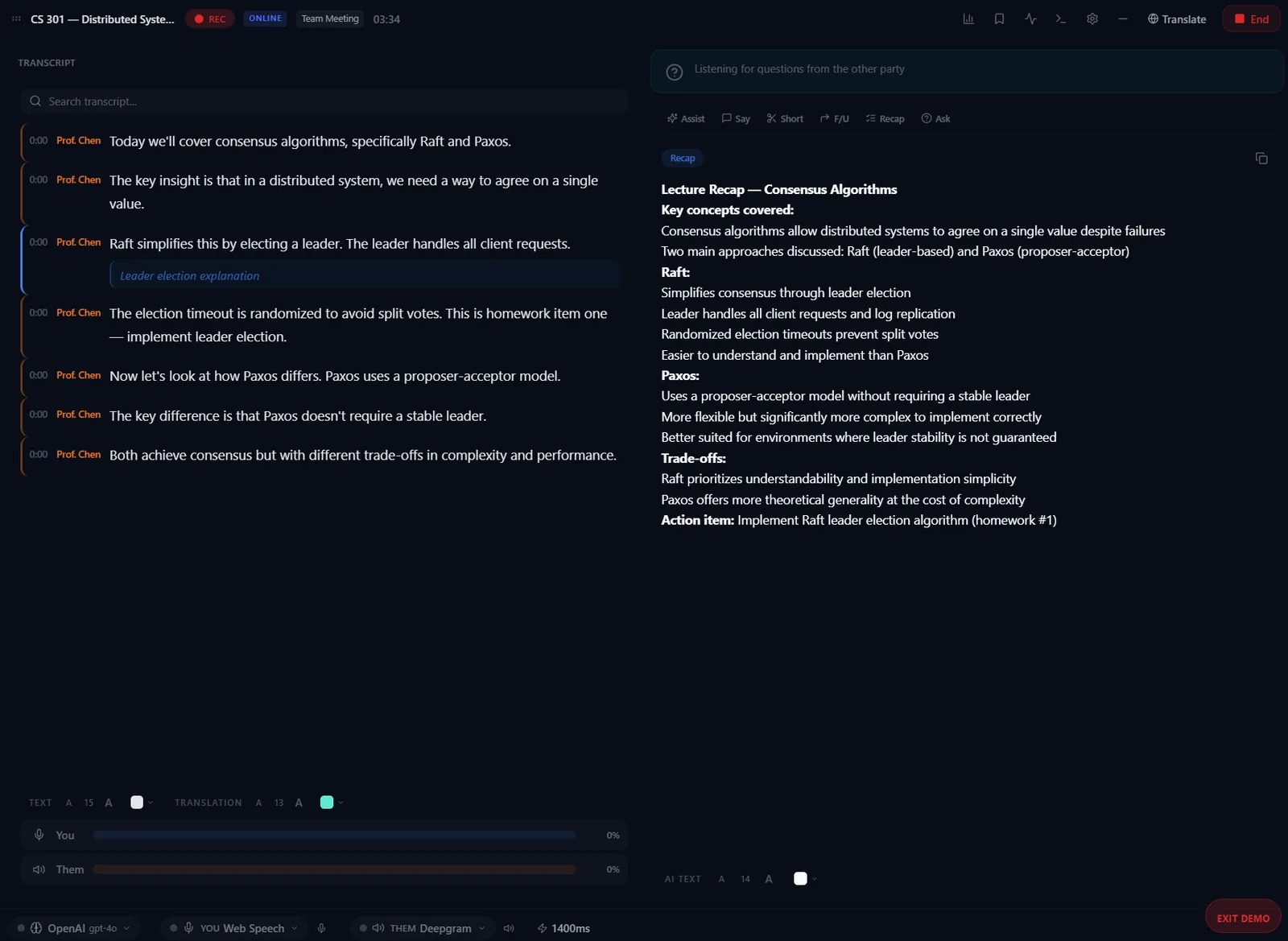
NexQ lecture mode with a running transcript, bookmarks and topic sections.

Lectures

Long-session transcription, bookmarks for the moments that matter, topic sections and action items, then a summary when class ends.

Lecture assistant guide
NexQ past meeting review with summary, action items, transcript and an audio playback timeline.

Meetings, and after

Review any past meeting with its transcript, summary, action items and synced audio playback, or simply ask it a question.

Getting started

What's new

Recently shipped.

Full changelog
  1. v2.25

    Latest

    macOS arrives, and the overlay can hide from screen share.

    • macOS (Apple Silicon), beta

      NexQ now runs on Apple Silicon Macs. The port was contributed by the community.

    • Hide from screen share

      Stealth Mode keeps the overlay on your screen but out of screen shares, recordings and screenshots. Toggle it in Settings → General, from the overlay header or the tray, or with Ctrl+Shift+H (Cmd+Shift+H on macOS).

    • Czech transcription

      Czech joins the list of transcription languages.

  2. v2.24

    Faster answers, honest numbers and a sharper transcript.

    • Extended thinking, per tier

      Switch Claude’s thinking on or off separately for Fast and Deep. With it off, Haiku starts answering in about a second.

    • Context scope picker

      Choose what an action reads: its default, since the last answer, the last few minutes, or the whole meeting.

    • Real usage, cost and timing

      Each request shows the tokens, cost and response time Claude reports, in the footer and the AI Log, with a live answer timer.

    • Response history and live progress

      Every answer of the meeting stays available, and a progress panel shows each phase while an answer is being written.

    • Transcript paragraphs and remote speakers

      Continuous speech merges into paragraphs. On Deepgram, remote voices are told apart as Speaker 1, Speaker 2 and so on, and you can rename them.

  3. v2.23

    Claude model catalog.

    • Model pickers from the Claude CLI

      Models come straight from the CLI’s catalog, with effort levels clamped per model and clear Check connection feedback.

    • Settings and footer in sync

      Activate Claude right from its Settings panel; Settings and the footer always agree on what is active.

  4. v2.22

    Your Claude subscription, and updates that never interrupt.

    • Claude subscription provider (beta)

      Use your Claude Pro or Max plan through the official Claude Code CLI. Warm sessions send only what is new. No API key.

    • Quiet automatic updates

      Updates download in the background, a pill shows what's new when one is ready, and they install when you quit, never mid-meeting.

    • Ask a past meeting

      Chat with any saved meeting; questions and answers are kept with it.

Downloads and release notes for every version are on GitHub Releases.

Download

Free. No account. Ready in a minute.

Install, pick a speech engine and an AI provider (or use the free local ones), and start any meeting. NexQ picks up your system audio automatically.

Windows

Windows 10 or 11, x64

  • Per-user installer, no admin rights needed
  • Updates itself quietly and installs when you quit
  • Not code-signed yet: on the SmartScreen prompt choose “More info”, then “Run anyway”
Download for Windows

macOS Beta

Apple Silicon (M-series) Macs

  • Beta, from v2.25, contributed by the community
  • Intel Macs are not supported yet
  • Please report anything odd on GitHub Issues
Download for macOS
Getting started guide Build from source Recommended: 8 GB RAM, 16 GB for local speech and AI models.

Compare

Your conversations shouldn't be a subscription.

NexQ compared with Otter.ai, Granola and Krisp
Feature NexQOtter.aiGranolaKrisp
Price Free $8+/mo $18/mo $16/mo
Open source Yes No No No
No bot joins the call Yes No Yes Yes
Can run fully local Yes No Partial Partial
Speech-to-text providers 10 1 1 1
AI providers 9 1 1 1
Local AI models Yes No No No
Your documents as context Yes No No No

Competitor pricing and features as listed in the NexQ README; check each vendor for current details. "Can run fully local" for NexQ means with local speech and AI providers selected.

FAQ

Questions, answered.

Anything else? The user guide goes deeper.

Is NexQ really free?

Yes. NexQ is open source under the MIT license, with no subscription and no feature limits. If you pick a cloud provider such as OpenAI or Deepgram, that provider bills you directly under its own pricing. Local providers like Whisper, Ollama and LM Studio cost nothing.

Does a bot join my meeting?

No. NexQ runs on your computer and listens to your microphone and your system audio, so it works with Zoom, Teams, Google Meet or any other app without adding a participant. Please follow the recording and consent rules that apply to you.

Does my audio leave my computer?

Only if you choose a cloud provider. With a local speech engine (such as Whisper or Parakeet) and a local model (Ollama or LM Studio), audio, transcripts and answers stay on your machine. Cloud providers receive what you send them. Meetings are stored in a local SQLite database, and on Windows your API keys are kept in the Windows Credential Manager.

Can other people see NexQ when I share my screen?

With Hide from screen share turned on (v2.25), the overlay stays visible to you but is excluded from screen sharing, recordings and screenshots. On Windows 10 version 2004 or later this works with Zoom, Teams, Google Meet and OBS. On macOS 14 and later, some recorders built on ScreenCaptureKit may still capture the window, so check before you rely on it.

Which platforms are supported?

Windows 10 and 11 (x64), with a per-user installer that needs no admin rights. macOS on Apple Silicon is available as a beta from v2.25. Intel Macs and Linux are not supported yet; contributions are welcome.

Do I need an API key?

No. You can transcribe with the Web Speech API or a local engine and answer with Ollama or LM Studio. If you already pay for Claude Pro or Max, the Claude subscription provider uses that plan through the official Claude Code CLI, also without an API key.

How does the Claude subscription option work?

NexQ starts the official claude command-line tool on your PC, with all tools disabled, in an empty private folder. You sign in in Claude’s own terminal; NexQ never sees your credentials. Requests count toward your plan’s limits. NexQ shows the usage Claude reports as an estimate, and switches to a fallback provider you choose if Claude is unavailable.

Why does Windows show a SmartScreen warning?

NexQ is not code-signed yet, which is common for open-source apps. Click “More info”, then “Run anyway”. You can also build NexQ from source; the full code is on GitHub. Updates are signed with an Ed25519 key and verified before they install.

How do updates work?

NexQ checks GitHub Releases in the background and downloads new versions silently. When one is ready, a pill shows what's new with an Install button; otherwise it installs the next time you quit. It never installs during a meeting. You can turn automatic updates off or skip a version in Settings → About.

Walk into your next call prepared.

Free, open source, and running on your own machine in minutes.